
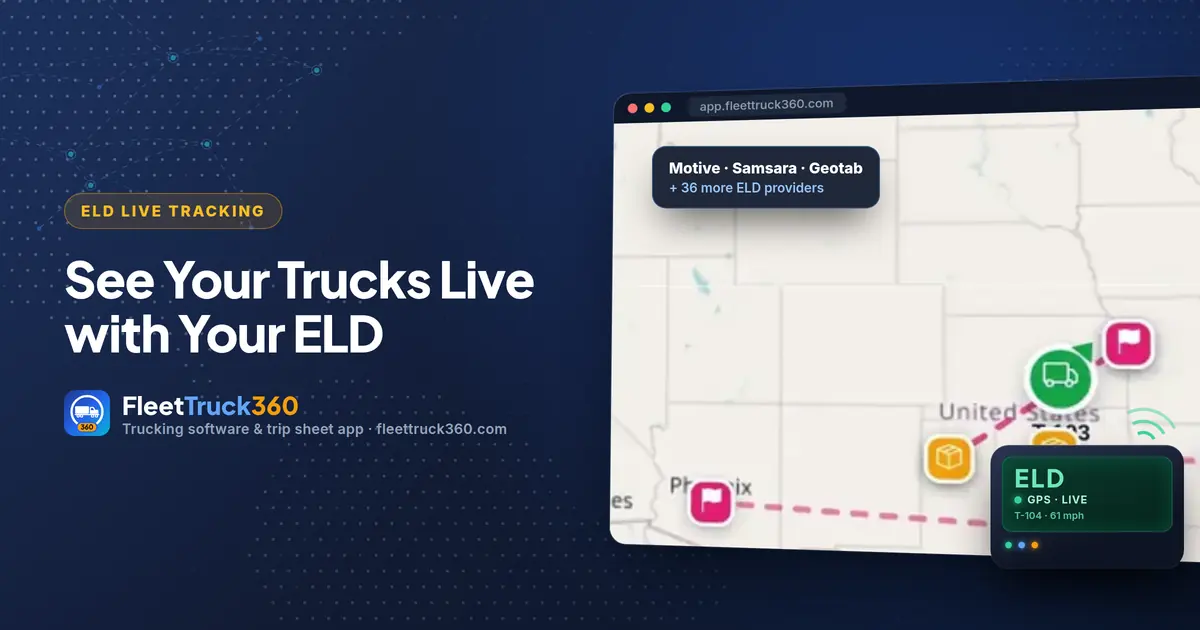
Almost every truck on US roads already has an ELD (electronic logging device) for hours of service, and almost every ELD has a GPS inside. That means the hardware for live truck tracking is already in your cab. With FleetTruck360 you can connect that ELD to your Live Dispatch map and see where every truck is, how fast it is moving and when it was last seen — without buying a tracker and without asking drivers to keep their phone on.
What is ELD live tracking?
Your ELD provider (Motive, Samsara, Geotab and others) already receives each truck's position from the device. ELD live tracking simply brings those positions into your trucking software. In FleetTruck360 they show on the same map as your trips on the road, next to the pickup and delivery of each load, so dispatch, trip sheets and IFTA fuel tax records stay in one place.
Driver's phone or ELD: which should you use?
FleetTruck360 gives every company both options. You choose one in Settings → Live tracking, and you can switch at any time.
| Driver's phone | ELD device | |
|---|---|---|
| Hardware | The driver's smartphone with the FleetTruck360 app | The ELD already in the truck |
| When it tracks | While the driver has a trip on the road | Whenever the ELD reports a position |
| Driver's battery | Uses the phone's GPS | No phone needed |
| Team driving | The main driver's phone shares; a co-driver's phone takes over if it stops | One position per truck |
| Setup | Drivers sign in to the app | Connect your ELD account once |
| Best for | Small fleets, owner-operators, trucks without an ELD | Fleets that already pay for an ELD with GPS |
How to connect your ELD, step by step
- Open Live tracking. Go to Settings → Live tracking, or tap the tracking button at the top of Live Dispatch.
- Choose "ELD device". The list of ELD providers opens.
- Find your provider. Search by name. Each provider shows how it connects: Direct API or Push URL.
- Direct API (Motive, Samsara, Geotab): paste the API key or login from your ELD account and tap Test & connect. FleetTruck360 checks the key first, then reads your trucks' positions about once a minute.
- Push URL (every other ELD): tap Create my push URL and copy it. Give it to your ELD provider's support and ask for data forwarding or a webhook. Your ELD then sends positions to FleetTruck360 on its own.
- Check your vehicles. The ELD's vehicles appear in a list, each matched to one of your trucks. Fix any match by hand.
Your ELD keeps recording hours of service exactly as before. FleetTruck360 only reads the truck's location; it never changes your logs.
Supported ELD providers
Direct API (connect with your key, read every minute): Motive (KeepTruckin), Samsara and Geotab (MyGeotab).
Push URL (your ELD sends positions to a private address): Verizon Connect, Omnitracs, PeopleNet (Trimble), Teletrac Navman, ISAAC Instruments, HOS247, J. J. Keller, BigRoad, Rand McNally, Transflo, Matrack, EROAD, Gorilla Safety, Azuga, Garmin eLog, GPSTrackit, Trucker Path, BIT ELD, Pacific Track, Dashcam ONE, Geometris, Ezlogz, GPSTab, Amazon Relay, iConnect, Fleet Complete, Zonar, Platform Science, GPS Insight, Spireon, Linxup, TrackEnsure, Konexial (My20), Apollo ELD and ELD Mandate.
Not in the list? Choose Other ELD provider. Any FMCSA-registered ELD or fleet data service that can forward positions works with the push URL.
How ELD vehicles are matched to your trucks
Each vehicle from the ELD is linked to a truck automatically:
- first by VIN, when the ELD and the truck record have the same VIN;
- then by unit or fleet number, for example "Unit 104" → truck T-104;
- anything left can be matched by hand, or marked as not a truck (a yard vehicle, for example).
A match you set by hand is kept, even when the ELD sends new data.
What you see on Live Dispatch
- Every truck on the map, coloured by state: moving, stopped, idle or offline.
- Speed and "last seen" time for each truck.
- Trips on the road with their driver, load number, pickup and delivery points.
- The route driven so far, as a trail behind the truck.
The map refreshes on its own every 30 seconds while it is open, on the website and in the phone app.
Is my ELD login safe?
- API keys and logins are stored encrypted and never shown again after you save them.
- A push URL is shown only once. If it is ever shared with the wrong person, create a new one with one tap; the old one stops working at once.
- Disconnect removes the key, the push URL and the ELD vehicle list. Live Dispatch then goes back to the drivers' phones.
Frequently asked questions
Do I need to buy new GPS hardware?
No. ELD live tracking uses the ELD already installed in your trucks. If a truck has no ELD, use the driver's phone option instead.
Does live tracking cost extra?
Live GPS tracking and the dispatch map are included in every FleetTruck360 plan. Some ELD providers include API access or data forwarding only in certain plans, so check with your ELD provider.
How often does the truck's position update?
Direct API providers are read about once a minute. Push URL providers send as often as your ELD is set up to, usually every minute.
What happens to the drivers' phones in ELD mode?
They stop sending their position, which saves their battery and mobile data. Drivers still use the app for trip sheets, fuel receipts and their pay.
Can I switch back to the drivers' phones?
Yes, at any time in Settings → Live tracking. Your ELD setup is kept, so switching back to ELD later needs no new setup.
Ready to see your trucks move? Start your free trial and connect your ELD in a few minutes — with trip sheets, driver pay and IFTA fuel tax in the same app.